
Entering a race and its results
In PLMS one race is one liberation. Inside it you record your birds, their arrival times and velocities, your loft order, and the placings from each competition they were in: club, section, federation and so on.
1. Add the race
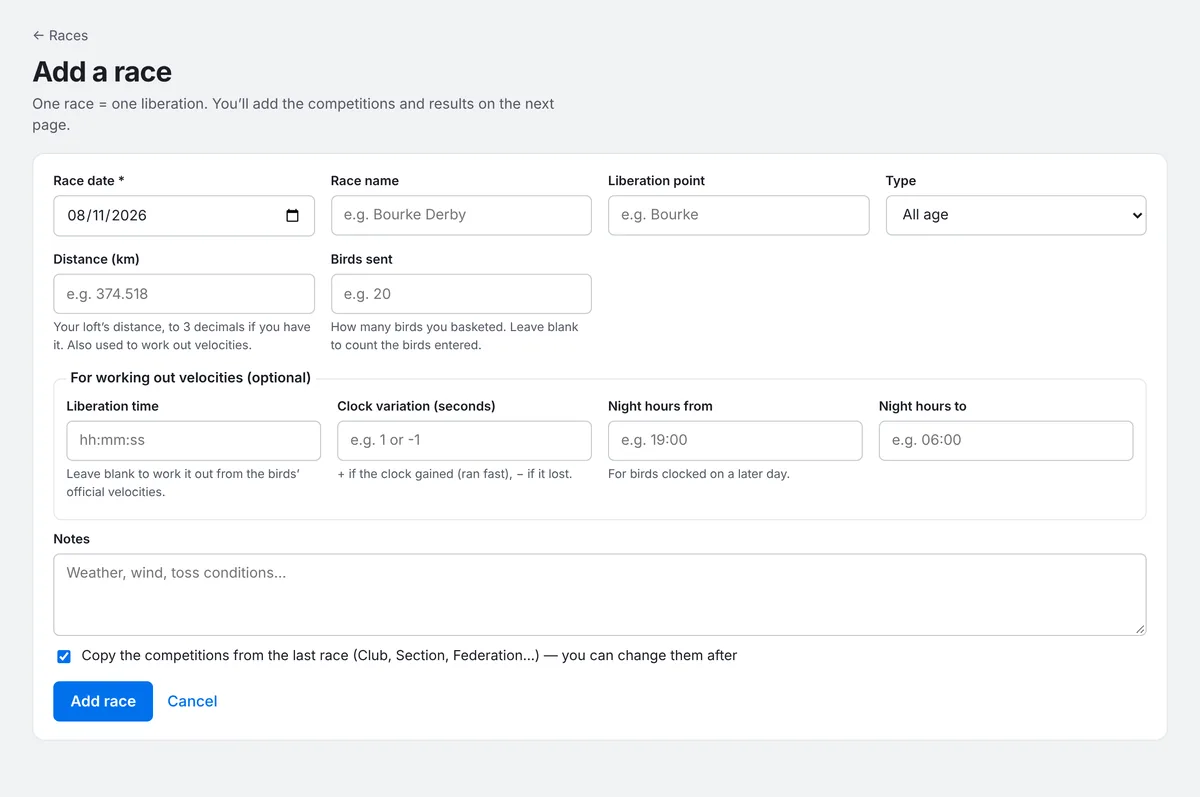
- Go to Races and press Add race.
- Enter the Race date, the race name, the liberation point and the type (All age, Old bird, Young bird or Other).
- Enter your loft's Distance (km), to 3 decimals if you have it. It's used to work out velocities.
- To have PLMS work out velocities, add the Liberation time, and the clock variation and night hours if they apply. Leave the liberation time blank if you'll enter official velocities instead.
- Leave Copy the competitions from the last race ticked to set up the same club, section and federation lines as last time. Then press Add race.
2. Check the competitions
The Competitions tab lists what your birds were in. Every race has a Loft order, the order your own birds came home. Add a line for each other competition with + Add competition, and enter how many birds were competing so PLMS can compare big and small races fairly.
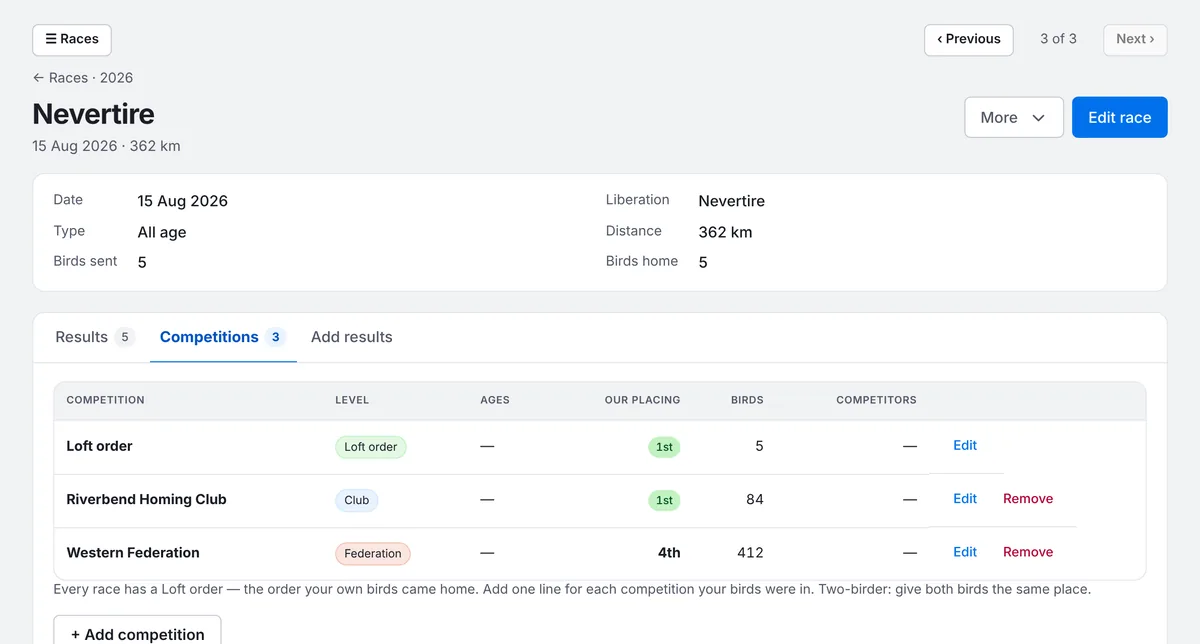
For a two-bird race, give both birds the same place.
3. Add your birds and results
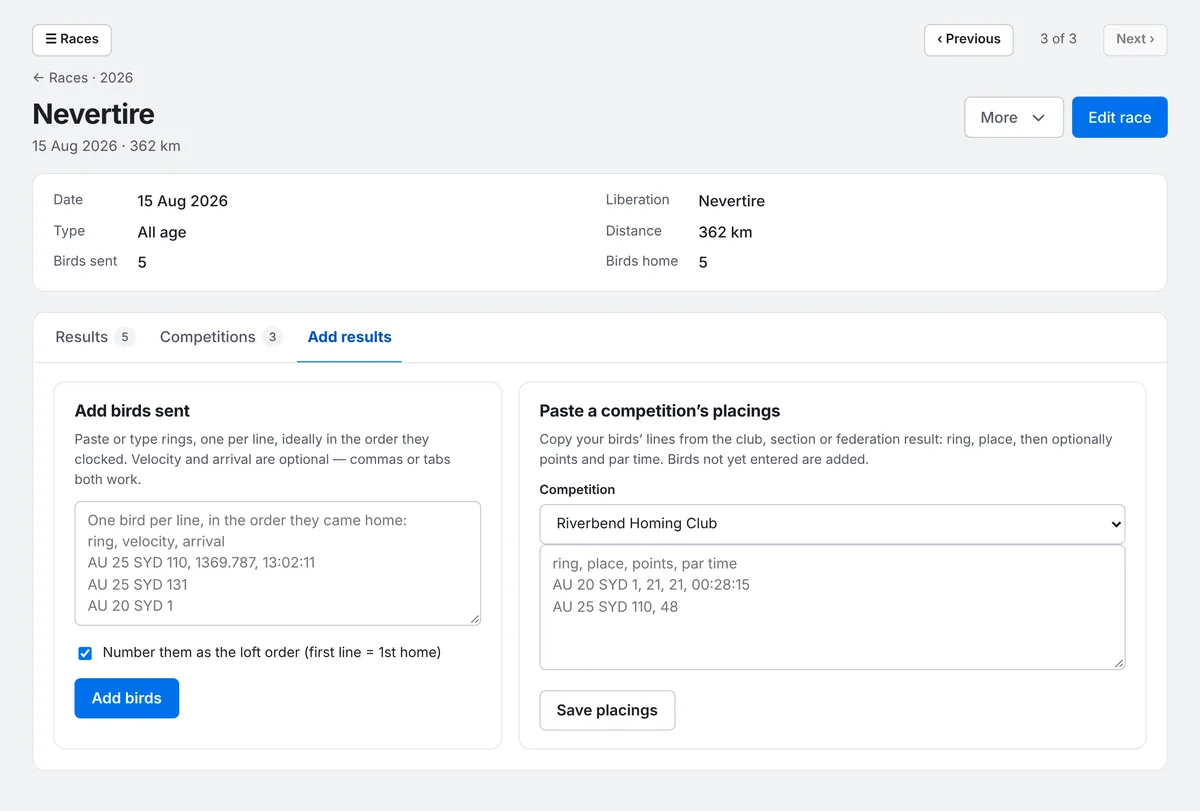
Open the Add results tab. There are two boxes:
- Add birds sent: paste or type rings, one per line, ideally in the order they clocked. You can add the velocity and arrival time after each ring, separated by commas or tabs. Tick Number them as the loft order to set your loft order from the same list.
- Paste a competition's placings: choose the competition, then copy your birds' lines from the club, section or federation result: ring and place, then points and par time if you have them. Birds not already in the race are added.
4. Check the results
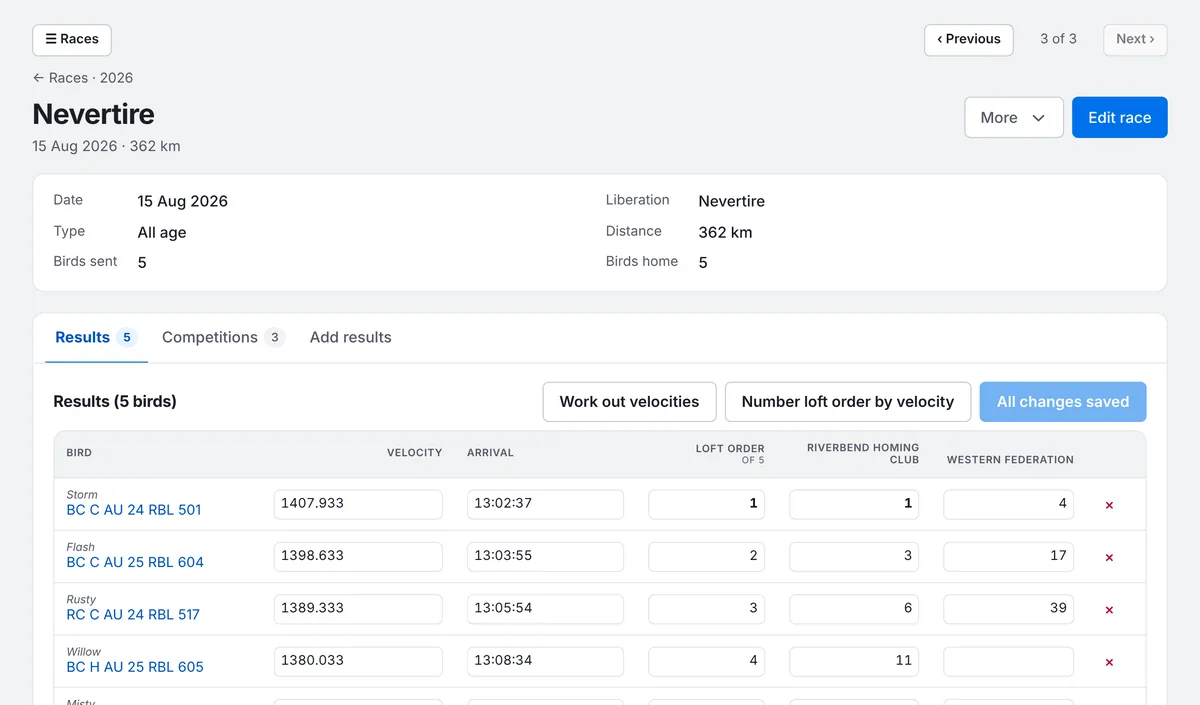
The Results tab shows one row per bird, with its velocity, arrival time, loft order and a column for each competition. Type a place into any column (leave it blank if the bird wasn't placed), then press Save changes. Enter or the down arrow moves down a column. Work out velocities calculates them from the arrival times, and Number loft order by velocity sets the loft order for you.
Use a photo of the basketing or clocking sheet
Instead of typing, take a photo of the printout from your clock. Open the assistant, press the camera button and choose the photo. It reads a basketing list (the birds entered) or a clocking list (the arrival times), then shows you what it found to check before anything is saved. Clear, flat, well-lit photos read best.
After you've saved a race, you can ask things like How did my birds go at Nevertire?
or Which birds have won this season?
Results from pigeonrace.net
If your federation publishes results on pigeonrace.net, go to Races, press Sync from pigeonrace.net and follow the steps to bring your results in.