
Getting started: your account and your first birds
PLMS keeps every bird in your loft in one register. This guide gets you from your invite email to a register with your birds in it, usually in under half an hour.
Create your account
PLMS is invitation only, so you'll start from an invite link we email you. The link works once, and only for the email address it was sent to.
- Open the link in the invite email. You'll see Join PLMS.
- Enter your name and your loft name. Other fliers see these on any birds you share with them, and the loft name is printed on your pedigrees.
- Choose a password of at least 10 characters, then press Create my account.
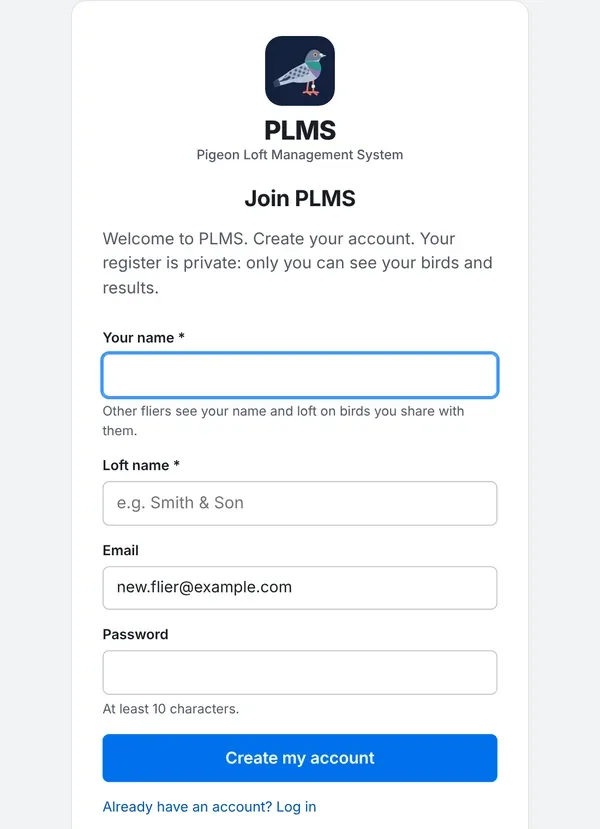
From then on, sign in at www.pigeonloft.au/app. Your register is private: nobody else can see your birds unless you share them.
Find your way around
The menu down the left side has a page for each part of your loft: Birds, Pairings, Races, Training, Health, Feeding and Reports. Your initials at the top right open the account menu, where you'll find Account & loft sharing, light and dark mode under Appearance, and Log out.
PLMS works in your phone's browser, so you can record things at the loft. Add it to your home screen from the browser's menu and it's one tap away.
Add a bird
- Go to Birds and press Add bird.
- Type the Ring number. It's the only thing you have to fill in.
- Add what you know: name, sex, status, hatch year, colour and strain.
- Type the Sire and Dam rings. If a parent isn't in your register yet, PLMS adds it for you as a "Pedigree only" bird, so your pedigrees still join up.
- Press Add bird, or Add & add another to keep going.
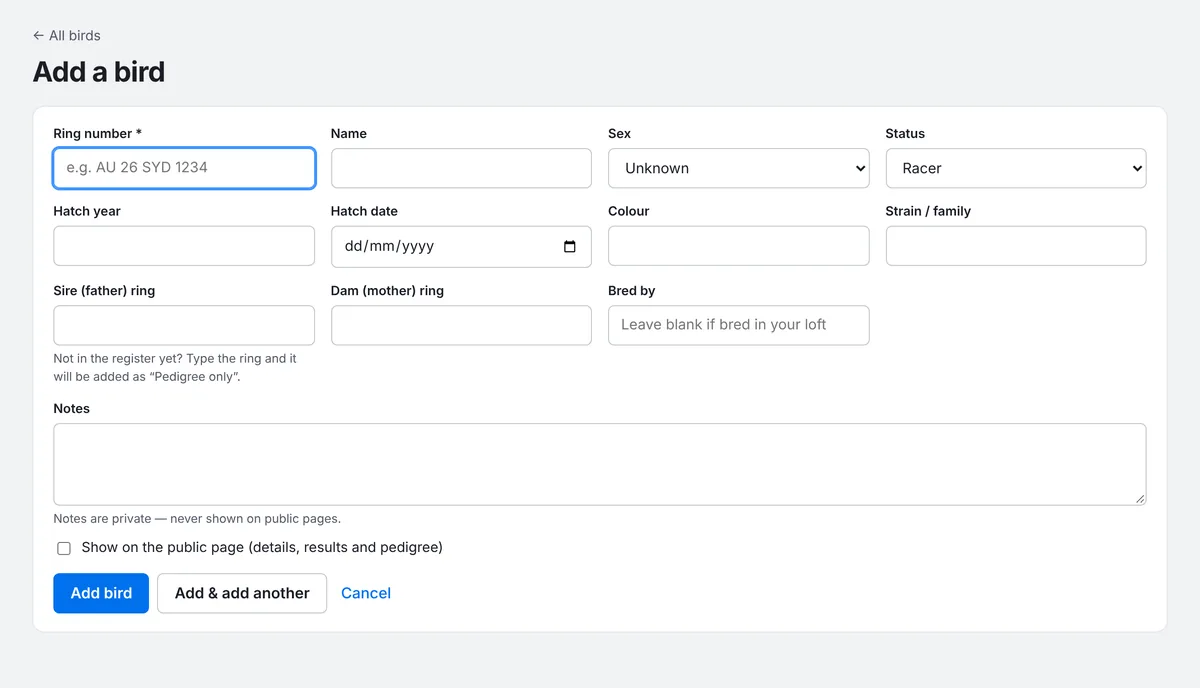
The Status tells PLMS where a bird is up to: Racer, Young bird, Stock, Sold / given away, Lost, Deceased or Pedigree only. Lost, sold and deceased birds keep their records, but drop out of the quick pickers for training, health and feeding.
Bring in a whole list from a spreadsheet
If your birds are already in Excel or another program, you can bring them all in at once.
- Go to Birds and press Import.
- Press Download template to see the column headings PLMS understands: ring, name, sex, hatch year, colour, strain, status, sire ring, dam ring, breeder and notes.
- Save your spreadsheet as CSV with those headings in the first row. Only the ring column is required.
- Choose the file, or paste the rows into the box, then press Import birds.
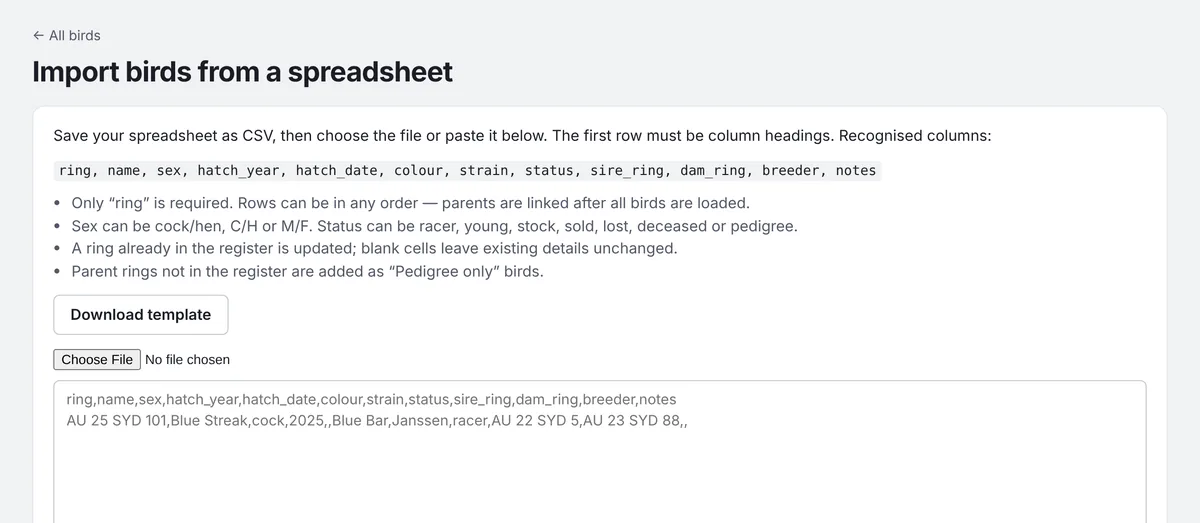
Rows can be in any order, because parents are linked after every bird is loaded. If a ring is already in your register, its details are updated and blank cells are left alone, so it's safe to import the same list twice.
Your birds list
The Birds page lists every bird with its sire, dam, status and number of races. Use the buttons along the top to show just your racers, stock, young birds or birds that are gone, and Filters to narrow it down by sex, year or loft. Type in the search box to find a bird by ring, name or colour.
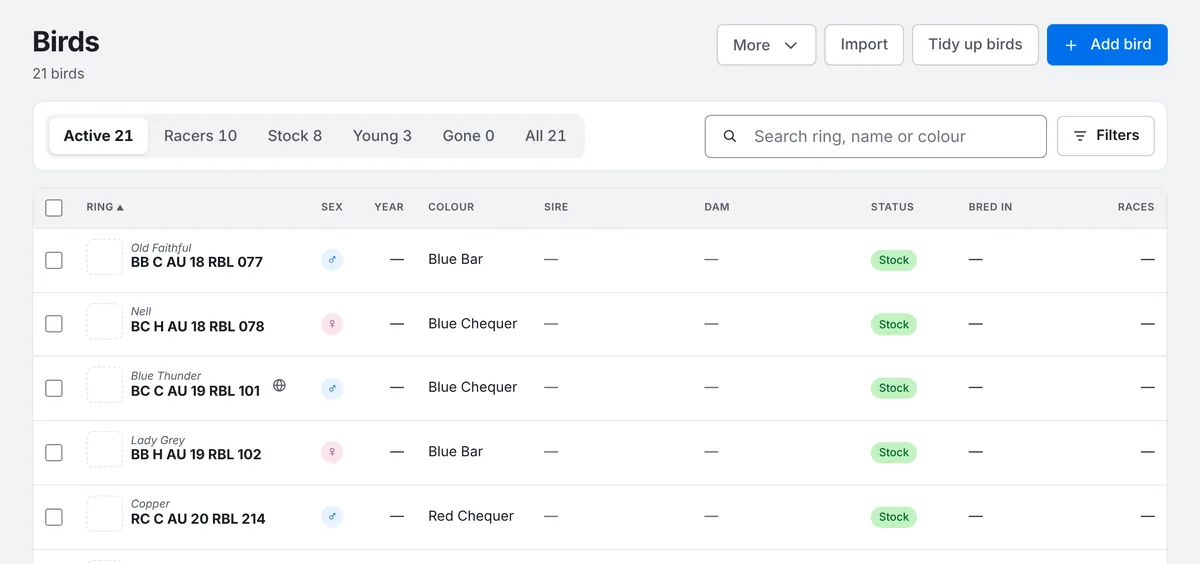
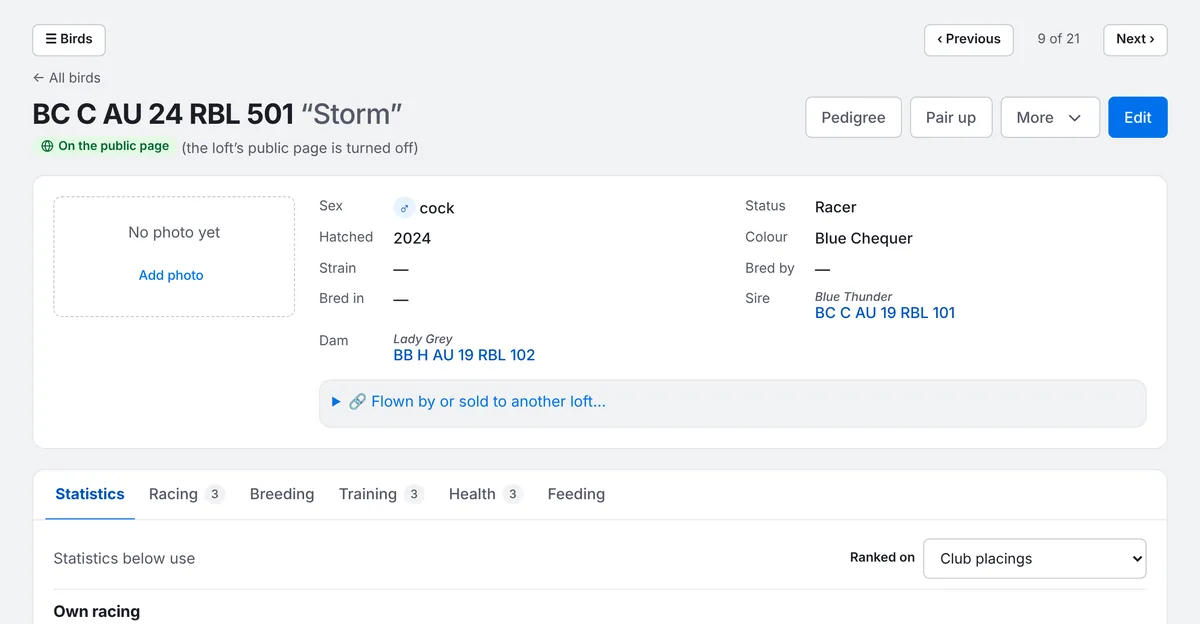
Click a bird to open its page. From there you can add a photo, open its Pedigree, Pair up a cock or hen, and see its racing, breeding, training, health and feeding on the tabs underneath.
More than one loft?
If you keep birds in more than one loft, record the loft on each pairing (see Pairings and nest records). A bird that breeds in more than one of your lofts keeps one record, so its pedigree and breeding record show all its youngsters together.